How it works

From your VS to every screen

An Android phone connects to the console by MIDI and to your WiFi network. Tablets, laptops and phones open the console in their browser. Nothing else to install, and no Internet needed.
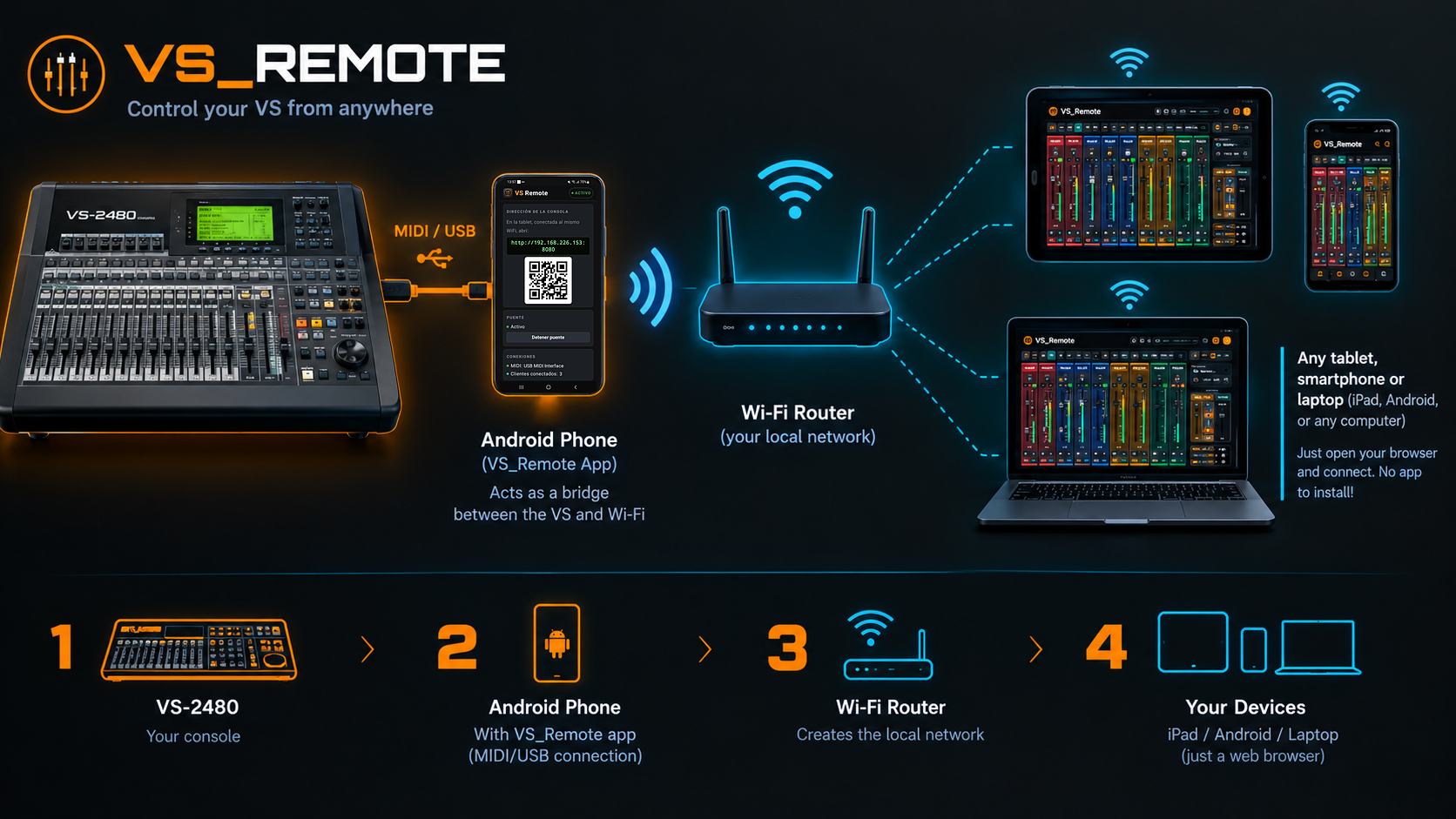
Diagram: the VS console connects by USB-MIDI to an Android phone running VS_Remote; the phone joins the WiFi router; tablets, phones and laptops open the console in their browser

Tap the image to see it full size.

Connections

How it connects, in two steps

There are only two connections: the bridge phone to the console, by cable, and the bridge phone to the WiFi. Tablets and phones are never plugged into the console: they only join the WiFi.

1

The bridge phone to the console (cable)

Swipe the diagram to see all of it →

Option A · to get started

With an OTG adapter

1 · Bridge phonewith VS RemoteOTG2 · OTG adapterUSB-C ♂ → USB-A ♀3 · USB-MIDI cableclass compliant, no driversUSB-MIDIinterfaceplug OUTplug INMIDI INMIDI OUT4 · VS consolerear panelThe MIDI cables cross: plug OUT → console MIDI IN, plug IN → console MIDI OUT. If it does not answer, swap the two plugs.

The simplest way: the USB-MIDI cable goes into the phone with a small OTG adapter. The phone runs on its battery.

Option B · recommended

With a USB-C hub with charging

1 · Bridge phonecharging while it worksUSB-C hubwith charging (PD)⚡phone chargerinto the hub's PD / power input2 · USB-C hubreplaces the OTG adapter3 · USB-MIDI cableinto a hub USB-A portUSB-MIDIinterfaceplug OUTplug INMIDI INMIDI OUT4 · VS consolerear panelThe MIDI cables cross: plug OUT → console MIDI IN, plug IN → console MIDI OUT. If it does not answer, swap the two plugs.

The hub replaces the OTG adapter and lets you plug in the phone charger: the phone charges while it controls the console. Ideal for rehearsals, recordings and long shows.

2

Everything on the same WiFi

192.168.0.23:8080Bridge phoneshows the address and a QRWiFi routerSame WiFi network for everyoneno Internet neededTabletfull consoleLaptopin the browserPhonesMOREME per musicianOpen the address that the bridge phone shows in the browser of each tablet or phone (or scan its QR). Nothing to install on them.

Good to know

  • The app is installed only on the bridge phone. Tablets and phones just use the browser.
  • Tablets are not plugged into anything: they only join the WiFi.
  • The MIDI plugs cross: OUT goes to the console's MIDI IN, and IN goes to its MIDI OUT. If it does not work, swap them.
  • No Internet and no SIM card needed: just a WiFi router.
  • Cable or wireless MIDI adapter: the adapter only replaces the MIDI cable, so each user picks the one they prefer. Today VS Remote works with USB-MIDI cables; wireless (Bluetooth) MIDI adapters will also be supported.
  • iPads and iPhones work as screens in the browser; only the bridge phone has to be an Android.
  • The audio does not go through the phone: it keeps using the console's usual cables. Only the commands travel over WiFi.
The pieces

Four pieces, one system

1 · Your VS console

It keeps working exactly as always: the sound comes in and goes out through its own connectors. VS_Remote only talks to it through its MIDI IN and MIDI OUT ports.

2 · The bridge phone

An Android phone with the VS_Remote app, connected to the console with a standard USB-MIDI adapter. It translates between MIDI and the network, and serves the console to every screen.

3 · The WiFi router

A normal home or studio router creates the local network. The phone and all the screens connect to it. It does not need Internet.

4 · Your screens

Tablets and laptops open the full console in the browser (iPad, Android, Windows, Mac, Linux). Each musician opens MOREME on their phone to control their own monitor mix.

We recommend a dedicated phone

Don't use your personal phone as the bridge: leave one phone just for the VS. An old Android you no longer use is perfect, or a cheap used one. It only needs Android 8 or later and a USB-C port that works as host (OTG). No SIM card or accounts are needed, just WiFi.

  • Always connected and charging, ready when you turn on the console.
  • No calls, notifications or other apps interrupting a show or a recording.
  • Battery and screen settings tuned only for the bridge.
  • Your personal phone stays free and private.
Step by step

Ready in four steps

The first time takes a few minutes. After that, it is just plug in and start.

Connect the VS

Plug the USB-MIDI adapter into the phone and its MIDI plugs into the console. The cables cross: the adapter's OUT goes to the console's MIDI IN, and the adapter's IN to the console's MIDI OUT.

Start the bridge

Open VS_Remote on the phone and tap Start. It shows the address and a QR code, and keeps running with the screen off.

Open the tablets

Scan the QR with any tablet or laptop on the same WiFi, or type the address in the browser. You can add it to the home screen like an app.

Start mixing!

The app detects the console model, reads the whole mixer and is ready. Musicians join from their phones with their own link.

What you need

The equipment

  • A VS console: VS-2480, VS-2000, VS-1880, VS-1824, VS-1680, VS-880EX or VS-R880.
  • A dedicated Android phone (not your personal one; an old one is fine), Android 8 or later, with a USB-C port that works as host (OTG).
  • A standard USB-MIDI adapter with 5-pin MIDI IN and OUT.
  • Recommended: a USB hub with charging, so the phone stays charged during long sessions.
  • A WiFi router. Internet is not needed.
  • Tablets or laptops with an up-to-date browser, and the musicians' phones for MOREME.
Console setup

Set it once

The VS has to be set to send and receive MIDI (in each model's MIDI and sync menus). The app shows the exact table of settings for your model, and changes some of them for you. They stay saved in the console.

  • MIDI OUT set to Out (not Thru), SysEx on, the same Device ID as in the app.
  • Mixer control by SysEx (Excl), so the console reports everything you change on its panel.
  • MTC sync output on, so the counter and the DAW timeline follow the console.
  • MMC set to MASTER, so the app sees the console's PLAY, STOP and REC buttons.

Where those settings are on each model:

  • VS-2480: UTILITY → MIDI and UTILITY → SYNC.
  • VS-2000: [SHIFT] + F4 (UTIL) → F5 (MIDI) (MIDI PARAMETER); sync from there with F6 (SYNC).
  • VS-1880, VS-1824 and VS-1680: [SHIFT] + [F5 (SYSTEM)] → [F4 (MIDI)]; sync with [SHIFT] + [EXT SYNC].
  • VS-880EX and VS-R880: [SYSTEM] until “SYS MIDI PRM ?” (CtrType, SysEx.Rx/Tx, MMC, MIDIThr) and “SYS Sync/Tempo ?” (Gen.).
Under the hood

What travels over the network

Control only, never audio

Only the orders travel (move a fader, play, mute, change an effect) and the data to draw the meters. Sound never goes through the phone or the WiFi.

Always in sync

When it connects, the app reads the whole mixer from the console. From then on, what you move on the console shows on the tablets, and what you move on a tablet changes the console (on the VS-2480 even the motorised faders move).

Many screens at once

Several tablets can control the console at the same time and every change shows on all of them. An access PIN keeps strangers out, and each musician's phone only controls their own mix.

Your work is saved on the phone

Scenes, projects, names, markers and personal mixes are stored on the bridge phone, with backups you can download. Nothing goes to the cloud.

Built for live use

The bridge keeps running with the screen off, reconnects by itself if a tablet sleeps or the WiFi drops, and reopens the MIDI interface if it is unplugged.

Adapts to each console

The app identifies the connected model and shows its channels, tracks, sends and effects. What a model cannot do over MIDI is simply not shown.
Tips

For a rock-solid setup

  • Use a phone just for the bridge and keep it charging.
  • Exclude the app from battery optimisation (the app reminds you and opens the settings).
  • Reserve the phone's IP address in the router, so the address is always the same.
  • Place the router near the stage or the control room, with no walls in between if possible.
  • Use a private network, not a guest network (those usually block devices from seeing each other).
  • If other people share the WiFi, set an access PIN.